
How to retain From and To details in rolled-up transactions
How to retain From and To details in rolled-up transactions
Configure rollup rules so From and To addresses appear in the top-level rolled-up transaction
Introduction
When rollup rules are enabled, transactions that meet the rule criteria are combined and shown as one single transaction in the table.
By default, the From and To addresses or contacts may not appear directly in the rolled-up row. This guide explains how to configure the rollup rule so that From and To details are retained and visible in the top-level transaction.
Before you begin
This setting must be configured inside the rollup rule
- Changes apply going forward
- Historical rolled-up transactions require reprocessing
- There is no automatic retroactive update
Step 1: Enable rollups when creating or editing a wallet
- Navigate to Wallets -> Create Wallet
Enter:
- Network
- Wallet name
- Wallet address
- Select the checkbox to enable rollups
- Click Create New Rule to configure the rollup rules
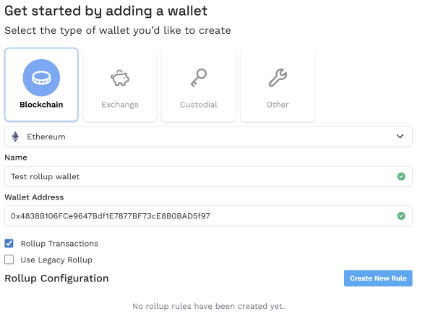
This opens the Rollup Configuration section.
Rollup configuration overview
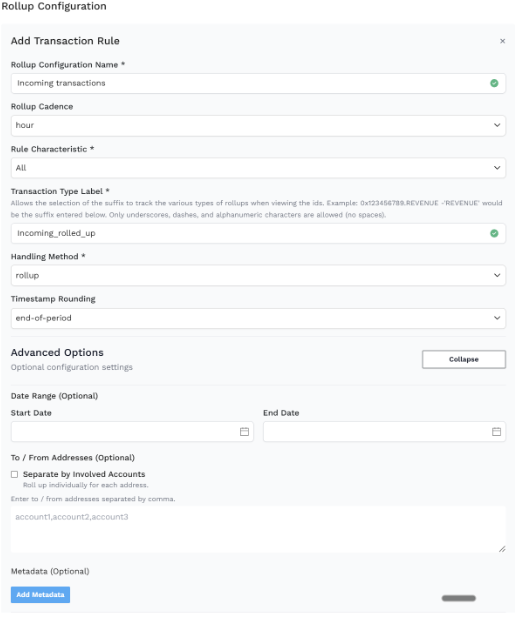
Rollup Configuration Name
A name for your rule. This is for identification only.
Rollup Cadence
Options:
- Hour
- Day
- Month
This determines how often transactions are grouped.
For example:
- Hour → transactions are combined per hour
- Day → transactions are combined per day
- Month → transactions are combined per month
The grouping happens based on the selected Rule Characteristic.
Rule Characteristic
This defines which types of transactions the rule applies to.
Examples include:
- Incoming Native
- Incoming Token
- Outgoing Native
- Outgoing Token
- Only Fee
- All
If “All” is selected, all transaction types are eligible for rollup. If a specific type is selected, only those transactions are grouped.
Transaction Type Label
This adds a suffix to help identify the rolled-up transaction type.
Example:
If the label is REVENUE, the transaction ID may appear with .REVENUE. Only underscores, dashes, and alphanumeric characters are allowed.
Handling Method
To retain From and To details in the rolled-up transaction row, select: rollupFromTo
This ensures:
- From and To values are retained
- They appear in the top-level rolled-up transaction
Timestamp Rounding
This controls how the timestamp is assigned to the rolled-up transaction.
For example:
- End-of-period assigns the transaction timestamp to the end of the selected rollup cadence period.
- Start-of-period assigns the transaction timestamp to the start of the selected rollup cadence period.
Advanced options
These settings are optional and allow further filtering.
Date Range (Optional)
- If set, the rollup rule applies only to transactions within this date range.
- If left blank, the rule applies to all eligible transactions.
To / From Addresses (Optional)
You can:
- Enter specific addresses (comma separated)
- Select “Separate by Involved Accounts”
Separate by Involved Accounts:
- Rolls up transactions individually per address
- Keeps each address grouped separately
If addresses are entered, the rule only applies to transactions involving those addresses.
Metadata (Optional)
You can add metadata conditions to narrow down which transactions are rolled up.
This allows rollups to apply only when certain metadata values are present.
Applying changes to historical rollups
If setting this up for the first time
New rolled-up transactions will display From and To details automatically.
If rollups already exist
Existing rolled-up transactions will not update automatically.
To update historical rollups:
- Uncombine existing rollups
- Edit the rollup rule
- Set Handling Method to rollupFromTo
- Reprocess the rollups
Reprocessing is required for past rolled-up transactions to reflect the updated configuration.
How to confirm it is working
After saving:
- Review new rolled-up transactions
- Confirm From and To appear in the top-level row
- If updating historical rollups, reprocess and verify
Need Help?
This article is designed to cover rollup rules in detail.
If you have any questions:
- Contact your account manager, or
- Email us at [email protected]
- Our team will respond as soon as possible and help address your questions
Updated 7 months ago